Account settings
Á þessari síðu
User account settings are specific to your account. You can access your settings by clicking on your username at the bottom of the Sidebar. Then, select the Account option. It looks like this:
Profile settings
Name and email
By default, Wagtail provides separate First Name, Last Name, and Email fields. Your name appears across the CMS interfaces when you manage content.
Note in addition, administrators can change usernames via the interface to manage users and roles.
Profile picture
If a user has not uploaded a profile picture, Wagtail will look for an avatar linked to their email address on Gravatar. Or you can upload your picture directly! Recommended format: 160x160 pixels.
Locale
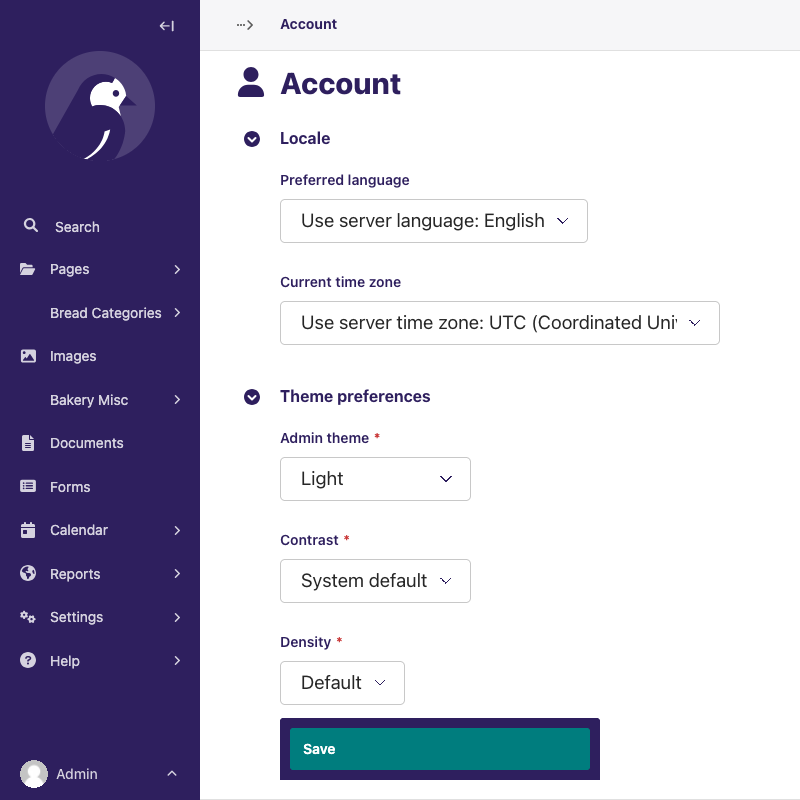
Preferred language
The Wagtail Admin interface supports various languages. To choose your preferred language, click the dropdown menu labeled ‘Preferred language’. Selecting your preferred language affects every aspect of the interface.
Current time zone
You can find the time zone option in the ’Locale’ section of your account preferences. Also, You can customize your time based on your preference on the drop-down menu.
Theme preferences
Admin theme
Wagtail offers the following admin theme options:
- Light mode
- Dark mode
- System default
The light and dark themes offer alternative color schemes for a more personalized user experience. Selecting system default aligns the theme of your admin interface with your computer's default theme.
Contrast theme
Adjust the level of contrast in the user interface, between:
- System default: matching your operating system or browser settings.
- More contrast: extra borders or visual cues for interactive elements.
Density
Configure how information-dense you want the admin interface to be.
- Default: Spacious UI.
- Snug: More information-dense.
Keyboard shortcuts
You can disable Wagtail’s custom keyboard shortcuts if required for compatibility purposes.
- On (default): adds support for custom keyboard shortcuts.
- Off: only retain universal shortcuts for rich text.
Password
You can change your password from here, by providing your old password, new password, and a confirmation of the new value. Wagtail’s password validation rules are heavily configurable, here are the default checks:
- Your password can’t be too similar to your other personal information.
- Your password must contain at least 8 characters.
- Your password can’t be a commonly used password.
- Your password can’t be entirely numeric.
From the login interface, you can also find a "Forgotten password?" link to the password reset form. Submit your account email to receive a password reset link, which allows setting a new password without having to provide the old one.
Notification settings
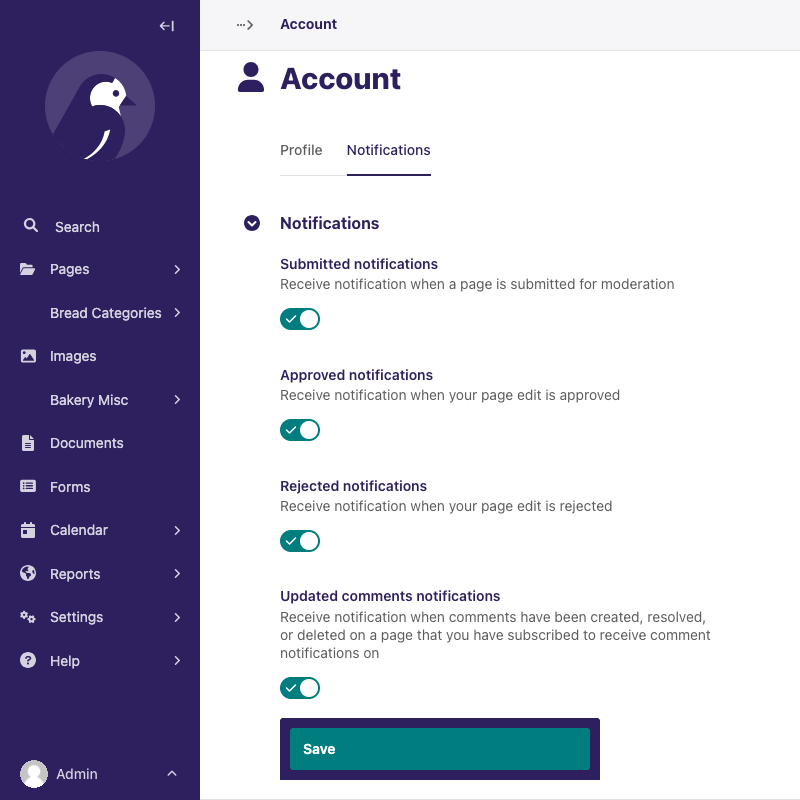
In a separate tab, the notification settings allow users to customize their preferences for receiving notifications relating to Wagtail’s workflows for moderation. You can choose to receive notifications for various events such as content updates, status, comments. This feature ensures that you stay on top of any changes or updates within the CMS.
Currently-supported notifications settings are:
- Submitted notifications: Receive notification when a page is submitted for moderation
- Approved notifications: Receive notification when your page edit is approved
- Rejected notifications: Receive notification when your page edit is rejected
- Updated comments notifications: Receive notification when comments have been created, resolved, or deleted on a page that you have subscribed to receive comment notifications on